Building a Zero-Dependency Image Editor with Web Components
Canvas Drawing Editor Complete Guide
A powerful, zero-dependency Canvas drawing editor Web Component


GitHub: https://github.com/typsusan-zzz/canvas-drawing-editor
NPM: https://www.npmjs.com/package/canvas-drawing-editor
Live Demo: https://typsusan-zzz.github.io/canvas-drawing-editor/
Table of Contents
Introduction
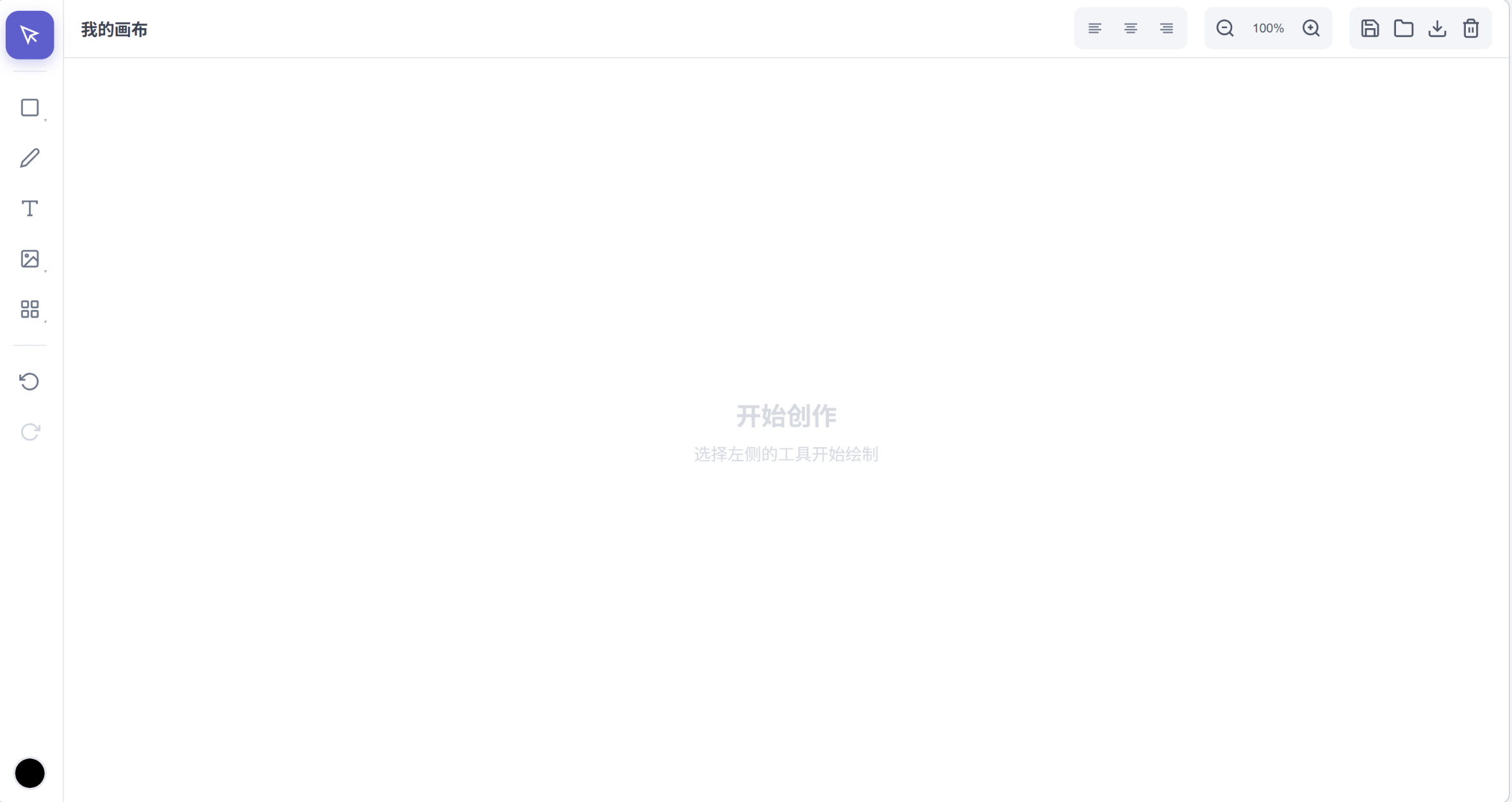
Canvas Drawing Editor is a modern canvas editor built on HTML5 Canvas, packaged as a Web Component for seamless integration into any frontend framework or vanilla HTML project.
Core Advantages
Zero Dependencies: Pure JavaScript implementation, no React, Vue, or other frameworks required
Lightweight: Only ~33KB gzipped
Cross-Framework: Supports Vue 2/3, React, Angular, and vanilla HTML
Feature-Rich: Complete workflow for drawing, editing, and exporting
Mobile-Friendly: Full touch gesture support
Why Choose Canvas Drawing Editor
Among the many canvas editor libraries available, Canvas Drawing Editor stands out with its unique advantages:
1. True Zero Dependencies
Unlike most canvas libraries that require specific frameworks, Canvas Drawing Editor is completely standalone. This means:
No framework lock-in
Smaller bundle size
Faster loading times
Simpler integration
2. Web Component Standard
Built on the Web Component standard, enjoying native browser support:
<!-- As simple as using native HTML tags -->
<canvas-drawing-editor title="My Canvas"></canvas-drawing-editor>
3. Enterprise-Grade Features
Lightweight yet fully featured:
20+ drawing tools
Complete undo/redo history
Layer management system
Hotzone template functionality
Tween animation engine
Multiple export formats
Canvas Drawing Editor vs Popular Canvas Libraries
| Feature | Canvas Drawing Editor | Fabric.js | Konva.js | Excalidraw | tldraw |
| Basic Info | |||||
| Bundle Size (gzip) | ~33KB | ~90KB | ~60KB | ~500KB+ | ~300KB+ |
| Zero Dependencies | ✅ | ✅ | ✅ | ❌ (React) | ❌ (React) |
| Web Component | ✅ | ❌ | ❌ | ❌ | ❌ |
| TypeScript Support | ✅ | ✅ | ✅ | ✅ | ✅ |
| Framework Compatibility | |||||
| Vanilla HTML | ✅ Out of box | ✅ | ✅ | ❌ | ❌ |
| Vue 2/3 | ✅ Out of box | ⚠️ Wrapper needed | ⚠️ Wrapper needed | ❌ | ❌ |
| React | ✅ Out of box | ⚠️ Wrapper needed | ✅ react-konva | ✅ Native | ✅ Native |
| Angular | ✅ Out of box | ⚠️ Wrapper needed | ⚠️ Wrapper needed | ❌ | ❌ |
| Drawing Tools | |||||
| Pencil/Freehand | ✅ | ✅ | ✅ | ✅ | ✅ |
| Rectangle/Circle | ✅ | ✅ | ✅ | ✅ | ✅ |
| Line/Arrow | ✅ | ✅ | ✅ | ✅ | ✅ |
| Polygon | ✅ | ✅ | ✅ | ❌ | ❌ |
| Star/Heart | ✅ | ❌ | ✅ Star only | ❌ | ❌ |
| Bezier Curve | ✅ | ✅ | ✅ | ❌ | ❌ |
| Text Input | ✅ | ✅ | ✅ | ✅ | ✅ |
| Rich Text | ✅ | ⚠️ Limited | ❌ | ❌ | ❌ |
| Image Import | ✅ | ✅ | ✅ | ✅ | ✅ |
| Editing Features | |||||
| Undo/Redo | ✅ Built-in | ❌ DIY | ❌ DIY | ✅ Built-in | ✅ Built-in |
| Layer Management | ✅ Built-in UI | ❌ DIY | ❌ DIY | ❌ | ❌ |
| Group/Ungroup | ✅ | ✅ | ✅ | ✅ | ✅ |
| Align/Distribute | ✅ Built-in UI | ❌ DIY | ❌ DIY | ❌ | ✅ |
| Lock/Hide | ✅ | ✅ | ✅ | ❌ | ✅ |
| Rotate/Scale | ✅ | ✅ | ✅ | ✅ | ✅ |
| Advanced Features | |||||
| Built-in Toolbar UI | ✅ | ❌ | ❌ | ✅ | ✅ |
| Image Filters | ✅ | ✅ | ✅ | ❌ | ❌ |
| Hotzone/Template Variables | ✅ | ❌ | ❌ | ❌ | ❌ |
| Tween Animation | ✅ Built-in | ❌ DIY | ✅ Built-in | ❌ | ❌ |
| Multiple Line Styles | ✅ | ✅ | ✅ | ✅ | ✅ |
| Import/Export | |||||
| JSON Save/Load | ✅ | ✅ | ✅ | ✅ | ✅ |
| PNG Export | ✅ | ✅ | ✅ | ✅ | ✅ |
| SVG Export | ❌ | ✅ | ❌ | ✅ | ✅ |
| Mobile Support | |||||
| Touch Gestures | ✅ | ⚠️ Limited | ✅ | ✅ | ✅ |
| Pinch to Zoom | ✅ | ⚠️ DIY | ✅ | ✅ | ✅ |
| Responsive Layout | ✅ | ❌ DIY | ❌ DIY | ✅ | ✅ |
| Developer Experience | |||||
| Learning Curve | ⭐ Low | ⭐⭐⭐ Medium-High | ⭐⭐ Medium | ⭐ Low | ⭐ Low |
| Out-of-Box Ready | ⭐⭐⭐⭐⭐ | ⭐⭐ | ⭐⭐ | ⭐⭐⭐⭐ | ⭐⭐⭐⭐ |
| API Flexibility | ⭐⭐⭐ | ⭐⭐⭐⭐⭐ | ⭐⭐⭐⭐⭐ | ⭐⭐ | ⭐⭐ |
| Documentation | ⭐⭐⭐ | ⭐⭐⭐⭐⭐ | ⭐⭐⭐⭐ | ⭐⭐⭐⭐ | ⭐⭐⭐ |
Legend:
✅ Fully supported / Built-in feature
⚠️ Partial support / Requires implementation
❌ Not supported
DIY = Do It Yourself (requires custom implementation)
Features
🎨 Drawing Tools
| Tool | Shortcut | Description |
| Select | V | Select, move, scale objects |
| Pencil | P | Free-form path drawing |
| Rectangle | R | Draw rectangles |
| Circle | C | Draw circles/ellipses |
| Line | L | Draw straight lines |
| Arrow | A | Draw arrows (single/double) |
| Polygon | - | Draw polygons (any number of sides) |
| Text | T | Add text |
| Rich Text | - | Text with mixed styles |
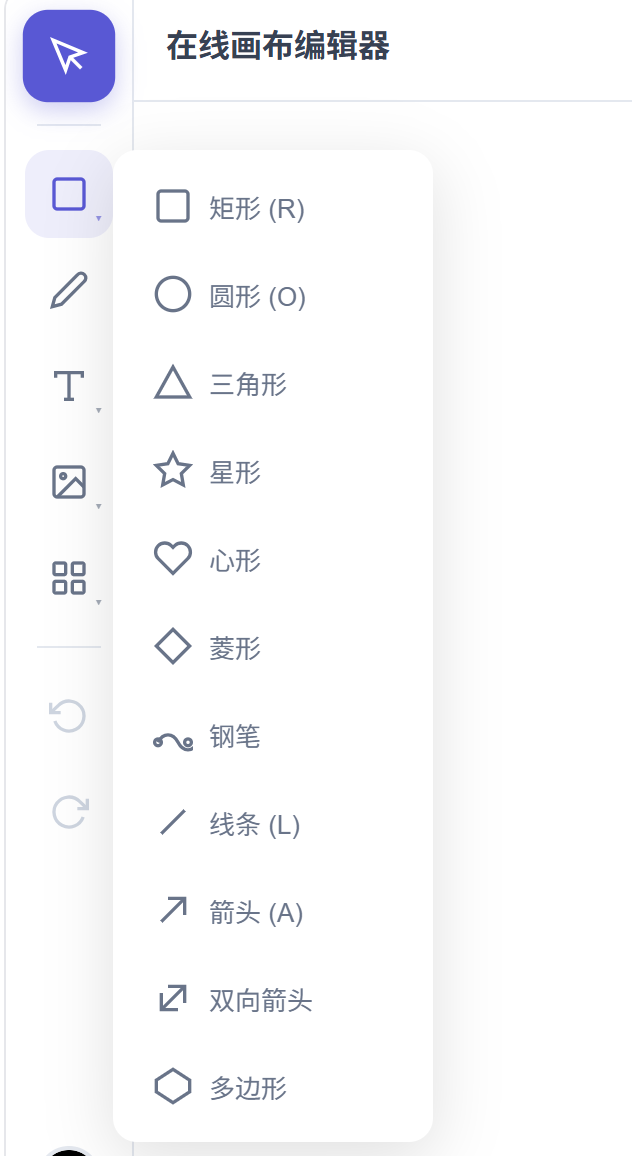
🔷 More Shapes
Star: Customizable points and inner/outer radius
Heart: Perfect heart curve
Triangle: Equilateral triangle
Diamond: Standard diamond shape
Bezier Curve: Precise curve control
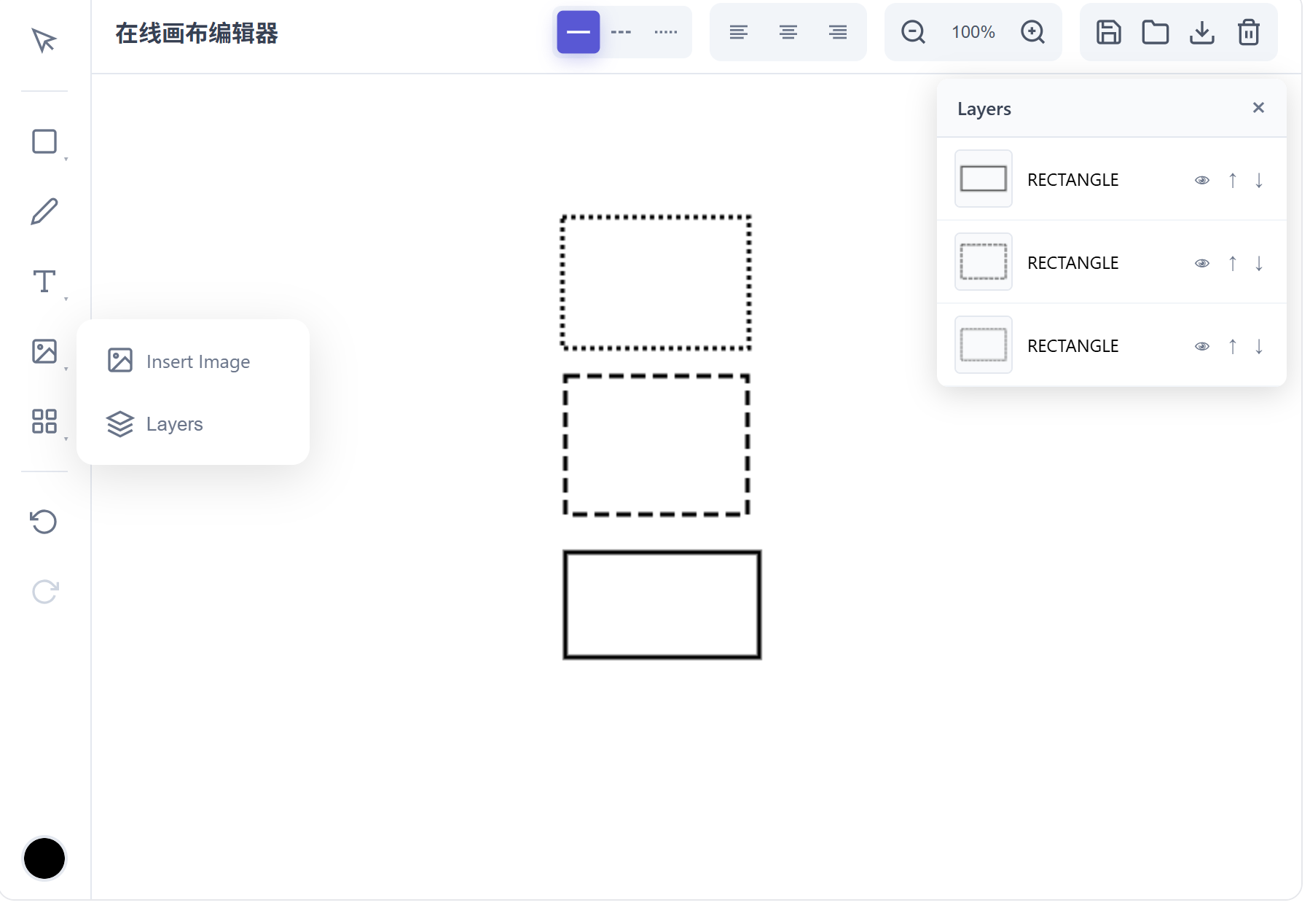
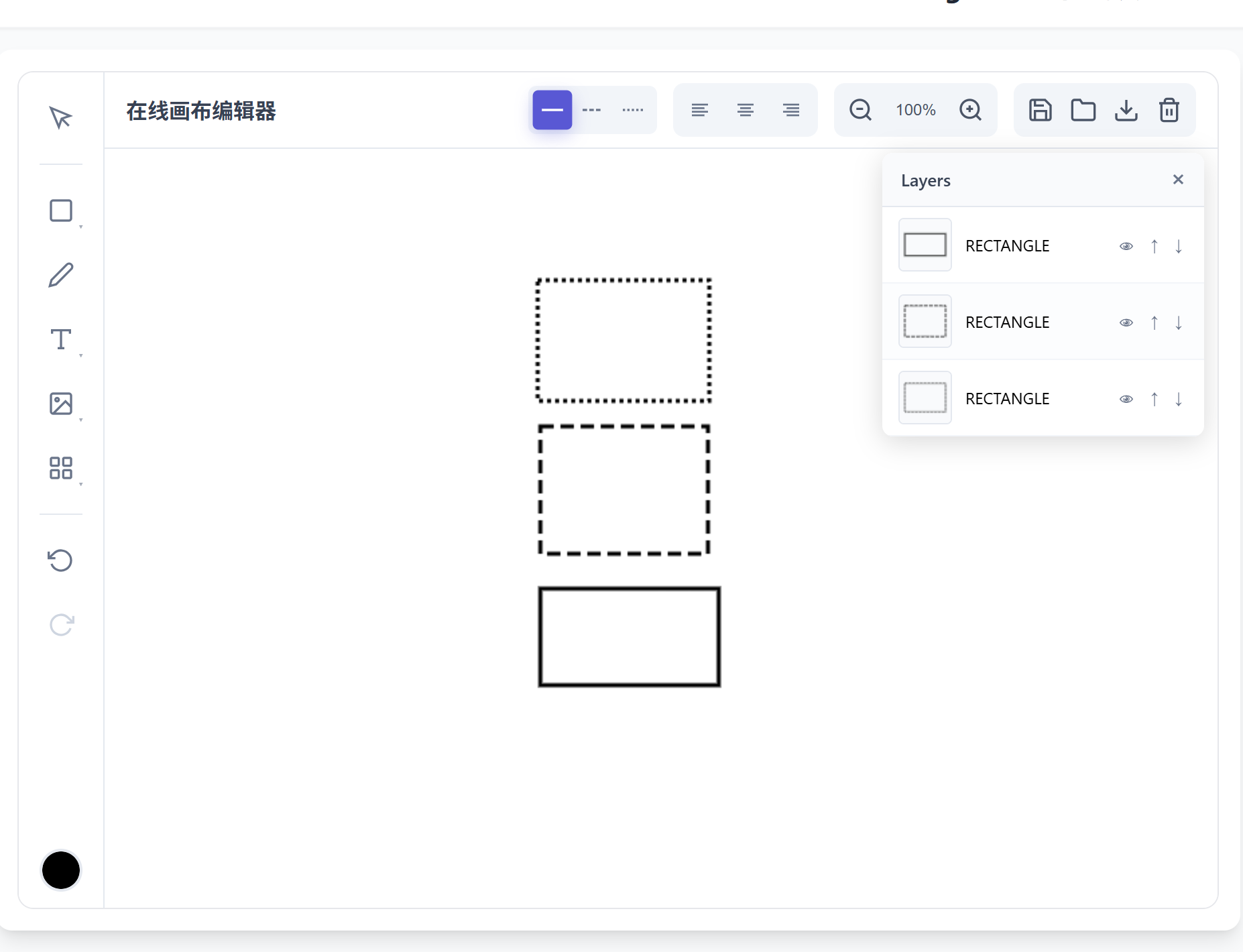
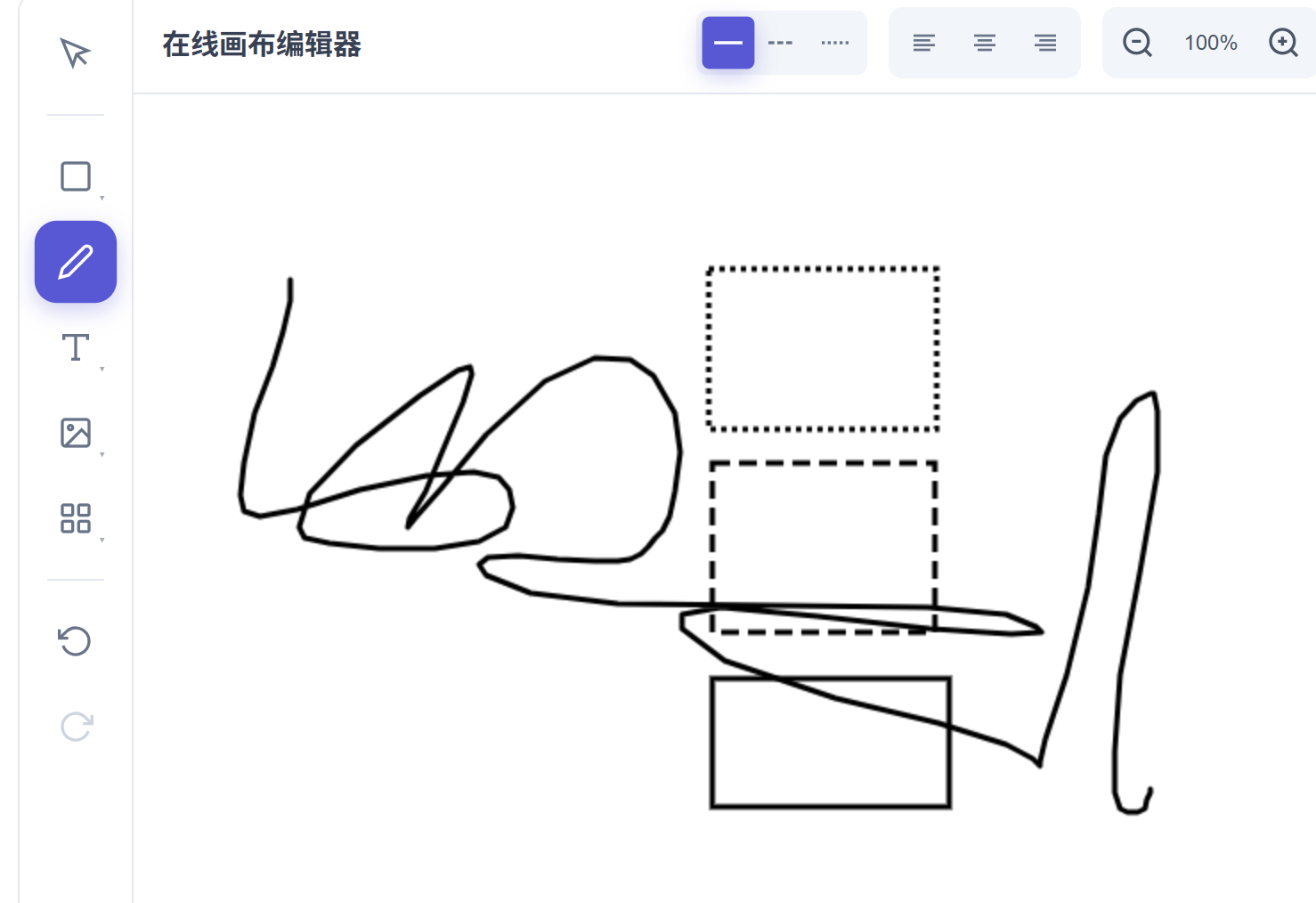
✏️ Line Styles
Three line styles supported for all shapes:
Solid
Dashed
Dotted

📚 Layer Management
Move layer up/down
Bring to front/Send to back
Visibility control
Lock/Unlock
🔄 Editing Features
Undo/Redo: Complete history support (Ctrl+Z / Ctrl+Y)
Copy/Paste: Quick object duplication (Ctrl+C / Ctrl+V)
Delete: Remove selected objects (Delete / Backspace)
Rotate: Free rotation to any angle
Proportional Scaling: Shift + drag corner handles
💾 Import/Export
| Feature | Description |
| JSON Save | Save complete project data for later editing |
| JSON Load | Load previously saved projects |
| PNG Export | Export as high-quality PNG image |
| Clear Canvas | One-click clear all content |
Quick Start
Minimal Example
Just three steps to add a fully functional canvas editor to your page:
Step 1: Include the library
<script src="https://unpkg.com/canvas-drawing-editor/dist/canvas-drawing-editor.umd.js"></script>
Step 2: Add the editor tag
<canvas-drawing-editor title="My Canvas"></canvas-drawing-editor>
Step 3: Set styles
canvas-drawing-editor {
  width: 100%;
  height: 600px;
  display: block;
}
Complete Example
<!DOCTYPE html>
<html>
<head>
  <meta charset="UTF-8">
  <meta name="viewport" content="width=device-width, initial-scale=1.0">
  <title>Canvas Drawing Editor Example</title>
  <style>
    canvas-drawing-editor {
      width: 100%;
      height: 100vh;
      display: block;
    }
  </style>
</head>
<body>
  <canvas-drawing-editor
    title="My Canvas"
    lang="en"
    theme-color="#5450dc"
  ></canvas-drawing-editor>

  <script src="https://unpkg.com/canvas-drawing-editor/dist/canvas-drawing-editor.umd.js"></script>

  <script>
    // Listen for canvas change events
    document.addEventListener('editor-change', (e) => {
      console.log('Canvas content changed:', e.detail.objects);
    });
  </script>
</body>
</html>
Installation
NPM Installation (Recommended)
npm install canvas-drawing-editor
Or using yarn:
yarn add canvas-drawing-editor
Or using pnpm:
pnpm add canvas-drawing-editor
CDN Import
If not using a package manager, import directly via CDN:
<!-- unpkg -->
<script src="https://unpkg.com/canvas-drawing-editor/dist/canvas-drawing-editor.umd.js"></script>

<!-- Or specify version -->
<script src="https://unpkg.com/canvas-drawing-editor@latest/dist/canvas-drawing-editor.umd.js"></script>
ES Module Import
// Import in your project
import 'canvas-drawing-editor';

// Or import specific types (TypeScript)
import { CanvasDrawingEditor, ToolType, CanvasObject } from 'canvas-drawing-editor';
Framework Integration
Vanilla HTML
Vanilla HTML is the simplest integration method, requiring no build tools:
<!DOCTYPE html>
<html lang="en">
<head>
  <meta charset="UTF-8">
  <meta name="viewport" content="width=device-width, initial-scale=1.0">
  <title>Canvas Drawing Editor</title>
  <style>
    * { margin: 0; padding: 0; box-sizing: border-box; }
    canvas-drawing-editor {
      width: 100vw;
      height: 100vh;
      display: block;
    }
  </style>
</head>
<body>
  <canvas-drawing-editor
    title="My Canvas"
    lang="en"
    theme-color="#5450dc"
  ></canvas-drawing-editor>

  <script src="https://unpkg.com/canvas-drawing-editor/dist/canvas-drawing-editor.umd.js"></script>

  <script>
    // Get editor instance
    const editor = document.querySelector('canvas-drawing-editor');

    // Listen for editor events
    document.addEventListener('editor-change', (e) => {
      console.log('Canvas content changed:', e.detail.objects);
      // Save data to server or localStorage here
    });

    document.addEventListener('editor-close', () => {
      console.log('Editor closed');
    });
  </script>
</body>
</html>
Vue 3
Using Canvas Drawing Editor in Vue 3 projects:
1. Installation
npm install canvas-drawing-editor
2. Basic Usage
<template>
  <canvas-drawing-editor
    title="Vue Canvas"
    style="width: 100%; height: 600px;"
  ></canvas-drawing-editor>
</template>

<script setup>
import 'canvas-drawing-editor';
</script>
3. Complete Example (with configuration and event handling)
<template>
  <canvas-drawing-editor
    :title="editorTitle"
    :lang="lang"
    :theme-color="themeColor"
    :tool-config="toolConfigStr"
    class="editor"
  ></canvas-drawing-editor>
</template>

<script setup lang="ts">
import { ref, computed, onMounted, onUnmounted } from 'vue';
import 'canvas-drawing-editor';

// Configuration
const editorTitle = ref('Vue3 Canvas');
const lang = ref('en');
const themeColor = ref('#5450dc');

// Tool configuration
const toolConfig = ref({
  pencil: true,
  rectangle: true,
  circle: true,
  line: true,
  arrow: true,
  polygon: true,
  text: true,
  image: true,
  undo: true,
  redo: true,
  zoom: true,
  download: true,
  exportJson: true,
  importJson: true,
  clear: true,
  color: true,
  layers: true,
  group: true,
  align: true
});

// Convert to JSON string
const toolConfigStr = computed(() => JSON.stringify(toolConfig.value));

// Event handling
const handleEditorChange = (e: CustomEvent) => {
  console.log('Canvas content changed:', e.detail.objects);
  // Save to localStorage
  localStorage.setItem('canvas-data', JSON.stringify({ objects: e.detail.objects }));
};

onMounted(() => {
  document.addEventListener('editor-change', handleEditorChange as EventListener);
});

onUnmounted(() => {
  document.removeEventListener('editor-change', handleEditorChange as EventListener);
});
</script>

<style scoped>
.editor {
  width: 100%;
  height: 100vh;
  display: block;
}
</style>
4. Suppress Console Warnings (Optional)
If you see Failed to resolve component: canvas-drawing-editor warning, add this to vite.config.ts:
import { defineConfig } from 'vite';
import vue from '@vitejs/plugin-vue';

export default defineConfig({
  plugins: [
    vue({
      template: {
        compilerOptions: {
          // Mark canvas-drawing-editor as custom element
          isCustomElement: (tag) => tag === 'canvas-drawing-editor'
        }
      }
    })
  ]
});
Vue 2
Vue 2 integration is similar to Vue 3:
1. main.js Configuration
import Vue from 'vue';
import App from './App.vue';

// Import Canvas Drawing Editor
import 'canvas-drawing-editor';

// Optional: Suppress console warnings
Vue.config.ignoredElements = ['canvas-drawing-editor'];

new Vue({
  render: h => h(App)
}).$mount('#app');
2. Component Usage
<template>
  <canvas-drawing-editor
    title="Vue2 Canvas"
    lang="en"
    :theme-color="themeColor"
    style="width: 100%; height: 600px;"
  ></canvas-drawing-editor>
</template>

<script>
export default {
  data() {
    return {
      themeColor: '#5450dc'
    };
  },
  mounted() {
    document.addEventListener('editor-change', this.handleChange);
  },
  beforeDestroy() {
    document.removeEventListener('editor-change', this.handleChange);
  },
  methods: {
    handleChange(e) {
      console.log('Canvas content changed:', e.detail.objects);
    }
  }
};
</script>
React
Using Canvas Drawing Editor in React projects:
1. Installation
npm install canvas-drawing-editor
2. TypeScript Type Declaration
For better type support, add type declarations:
// types/canvas-drawing-editor.d.ts
declare global {
  namespace JSX {
    interface IntrinsicElements {
      'canvas-drawing-editor': React.DetailedHTMLProps<
        React.HTMLAttributes<HTMLElement> & {
          title?: string;
          lang?: string;
          'theme-color'?: string;
          'tool-config'?: string;
          'initial-data'?: string;
          'enable-hotzone'?: string;
          'hotzone-data'?: string;
        },
        HTMLElement
      >;
    }
  }
}
3. Complete Usage Example
import { useEffect, useRef } from 'react';
import 'canvas-drawing-editor';

function App() {
  const editorRef = useRef<HTMLElement>(null);

  // Tool configuration
  const toolConfig = {
    pencil: true,
    rectangle: true,
    circle: true,
    line: true,
    arrow: true,
    polygon: true,
    text: true,
    image: true,
    undo: true,
    redo: true,
    zoom: true,
    download: true,
    exportJson: true,
    importJson: true,
    clear: true,
    color: true,
    layers: true,
    group: true,
    align: true
  };

  useEffect(() => {
    // Listen for editor events
    const handleEditorChange = (e: Event) => {
      const customEvent = e as CustomEvent;
      console.log('Canvas content changed:', customEvent.detail.objects);
    };

    const handleEditorClose = () => {
      console.log('Editor closed');
    };

    document.addEventListener('editor-change', handleEditorChange);
    document.addEventListener('editor-close', handleEditorClose);

    return () => {
      document.removeEventListener('editor-change', handleEditorChange);
      document.removeEventListener('editor-close', handleEditorClose);
    };
  }, []);

  return (
    <div className="app">
      <canvas-drawing-editor
        ref={editorRef}
        title="React Canvas"
        lang="en"
        theme-color="#5450dc"
        tool-config={JSON.stringify(toolConfig)}
        style={{ width: '100%', height: '100vh', display: 'block' }}
      />
    </div>
  );
}

export default App;
Angular
Using Canvas Drawing Editor in Angular projects:
1. Installation
npm install canvas-drawing-editor
2. Configure CUSTOM_ELEMENTS_SCHEMA
Angular requires CUSTOM_ELEMENTS_SCHEMA to support Web Components:
// app.module.ts
import { NgModule, CUSTOM_ELEMENTS_SCHEMA } from '@angular/core';
import { BrowserModule } from '@angular/platform-browser';
import { AppComponent } from './app.component';

// Import Canvas Drawing Editor
import 'canvas-drawing-editor';

@NgModule({
  declarations: [AppComponent],
  imports: [BrowserModule],
  schemas: [CUSTOM_ELEMENTS_SCHEMA],  // Add this line
  bootstrap: [AppComponent]
})
export class AppModule { }
3. Component Usage
// app.component.ts
import { Component, OnInit, OnDestroy, CUSTOM_ELEMENTS_SCHEMA } from '@angular/core';
import 'canvas-drawing-editor';

@Component({
  selector: 'app-root',
  standalone: true,
  schemas: [CUSTOM_ELEMENTS_SCHEMA],
  template: `
    <canvas-drawing-editor
      [attr.title]="editorTitle"
      [attr.lang]="lang"
      [attr.theme-color]="themeColor"
      [attr.tool-config]="toolConfigStr"
      style="width: 100%; height: 100vh; display: block;"
    ></canvas-drawing-editor>
  `
})
export class AppComponent implements OnInit, OnDestroy {
  editorTitle = 'Angular Canvas';
  lang = 'en';
  themeColor = '#5450dc';

  toolConfig = {
    pencil: true,
    rectangle: true,
    circle: true,
    line: true,
    arrow: true,
    polygon: true,
    text: true,
    image: true,
    undo: true,
    redo: true,
    zoom: true,
    download: true,
    exportJson: true,
    importJson: true,
    clear: true,
    color: true,
    layers: true,
    group: true,
    align: true
  };

  get toolConfigStr(): string {
    return JSON.stringify(this.toolConfig);
  }

  private handleEditorChange = (e: Event) => {
    const customEvent = e as CustomEvent;
    console.log('Canvas content changed:', customEvent.detail.objects);
  };

  ngOnInit(): void {
    document.addEventListener('editor-change', this.handleEditorChange);
  }

  ngOnDestroy(): void {
    document.removeEventListener('editor-change', this.handleEditorChange);
  }
}
Configuration Options
Canvas Drawing Editor provides rich configuration options for complete customization of editor behavior and appearance.
Basic Attributes
| Attribute | Type | Default | Description |
title | string | "Canvas Editor" | Editor title, displayed at the top |
lang | string | "zh" | Interface language, supports "zh" (Chinese) and "en" (English) |
theme-color | string | "#5450dc" | Theme color, affects buttons, hover states, selection states |
initial-data | string | - | Initial JSON data for loading existing content |
enable-hotzone | boolean | false | Enable hotzone feature (admin mode) |
hotzone-data | string | - | Hotzone variable data (JSON format) |
tool-config | string | - | Tool configuration object (JSON format) |
Attribute Usage Example
<canvas-drawing-editor
  title="My Canvas"
  lang="en"
  theme-color="#3b82f6"
  enable-hotzone="true"
  tool-config='{"pencil":true,"rectangle":true,"circle":true}'
  initial-data='{"objects":[{"id":"1","type":"RECTANGLE","x":100,"y":100,"width":200,"height":150,"color":"#3b82f6","lineWidth":2}]}'
></canvas-drawing-editor>
Dynamic Attribute Updates
You can dynamically update editor attributes via JavaScript:
const editor = document.querySelector('canvas-drawing-editor');

// Update title
editor.setAttribute('title', 'New Title');

// Switch language
editor.setAttribute('lang', 'zh');

// Change theme color
editor.setAttribute('theme-color', '#10b981');

// Load new data
editor.setAttribute('initial-data', JSON.stringify({
  objects: [
    { id: 'rect1', type: 'RECTANGLE', x: 50, y: 50, width: 100, height: 80, color: '#ef4444', lineWidth: 2 }
  ]
}));
Tool Configuration
Use the tool-config attribute to precisely control which tools appear in the toolbar.
Complete tool-config Options
const toolConfig = {
  // Drawing tools
  pencil: true,      // Pencil tool
  rectangle: true,   // Rectangle tool
  circle: true,      // Circle tool
  line: true,        // Line tool
  arrow: true,       // Arrow tool
  polygon: true,     // Polygon tool
  text: true,        // Text tool
  image: true,       // Image import

  // Operation tools
  undo: true,        // Undo button
  redo: true,        // Redo button
  zoom: true,        // Zoom controls

  // File operations
  download: true,    // PNG export
  exportJson: true,  // JSON save
  importJson: true,  // JSON load
  clear: true,       // Clear canvas

  // Style tools
  color: true,       // Color picker

  // Advanced features
  layers: true,      // Layer management
  group: true,       // Group/Ungroup
  align: true        // Alignment/Distribution
};

// Usage
<canvas-drawing-editor
  tool-config={JSON.stringify(toolConfig)}
></canvas-drawing-editor>
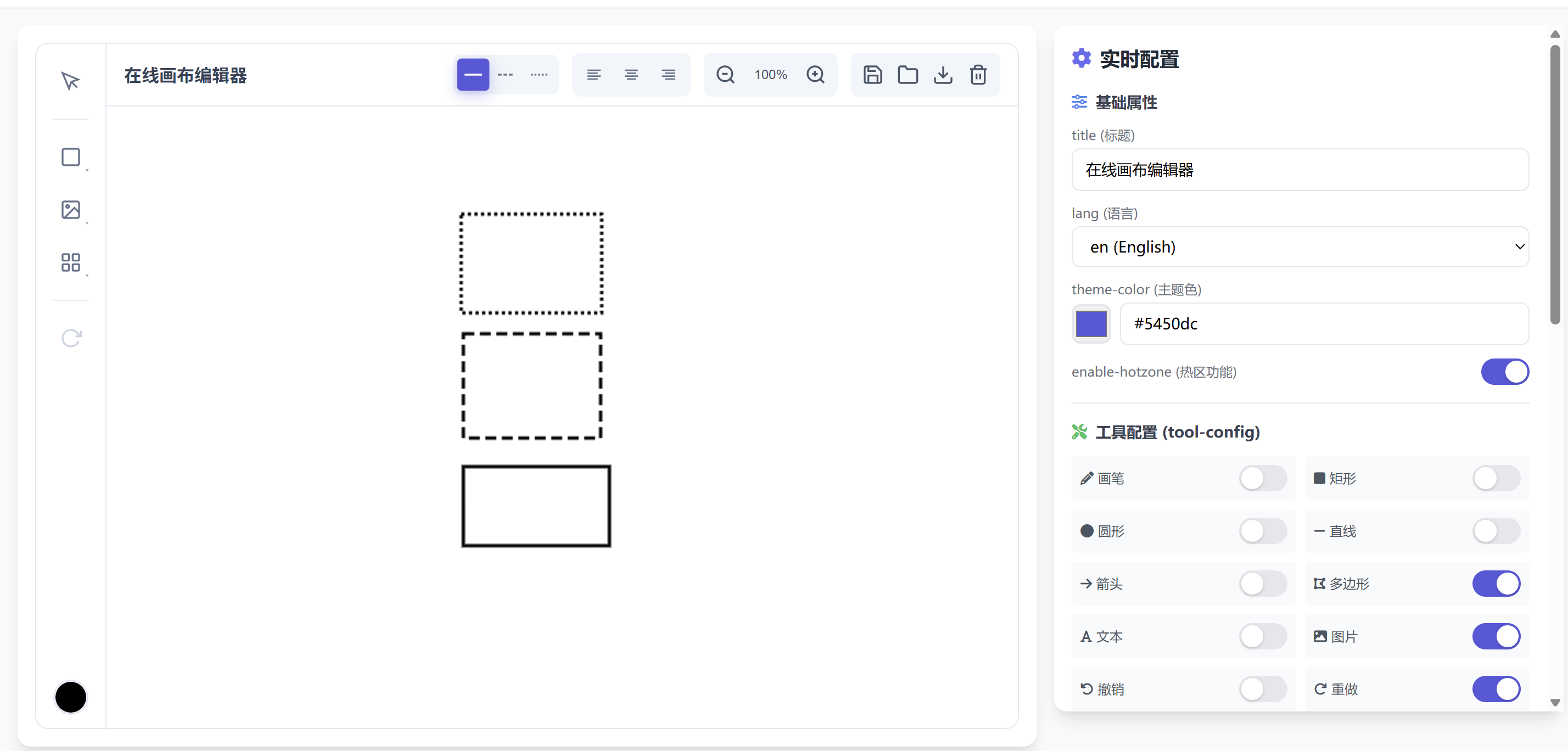
Legacy Attributes (Backward Compatible)
In addition to tool-config, individual show-* attributes are supported, but tool-config is recommended:
| Attribute | Type | Default | Description |
show-pencil | boolean | true | Show pencil tool |
show-rectangle | boolean | true | Show rectangle tool |
show-circle | boolean | true | Show circle tool |
show-line | boolean | true | Show line tool |
show-arrow | boolean | true | Show arrow tool |
show-polygon | boolean | true | Show polygon tool |
show-text | boolean | true | Show text tool |
show-image | boolean | true | Show image import |
show-undo | boolean | true | Show undo button |
show-redo | boolean | true | Show redo button |
show-zoom | boolean | true | Show zoom controls |
show-download | boolean | true | Show PNG export |
show-export | boolean | true | Show JSON save |
show-import | boolean | true | Show JSON load |
show-color | boolean | true | Show color picker |
show-clear | boolean | true | Show clear canvas button |
show-layers | boolean | true | Show layer management |
show-group | boolean | true | Show group/ungroup |
show-align | boolean | true | Show alignment/distribution |
Drawing Tools
Selection Tool (V)
The selection tool is the most basic tool for selecting, moving, and transforming objects.
Operations:
Single Click: Select single object
Shift + Click: Multi-select objects
Marquee Selection: Drag to create selection box, select all objects within
Drag: Move selected objects
Drag Corner Handles: Scale objects
Shift + Drag Corner: Proportional scaling
Drag Rotation Handle: Rotate objects
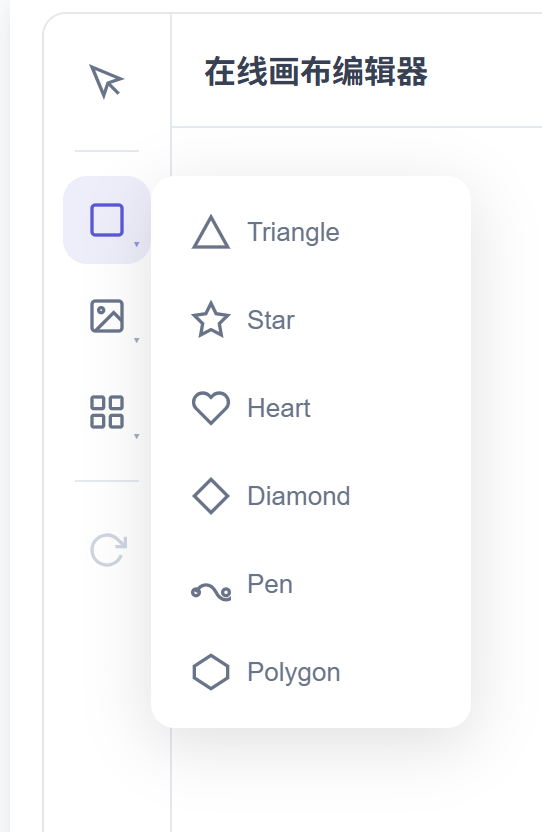
Pencil Tool (P)
Free-form path drawing, suitable for signatures, sketches, etc.
Operations:
Select pencil tool
Hold left mouse button and draw on canvas
Release mouse to complete drawing
Properties:
Color: Set via color picker
Line Width: Default 3px
Rectangle Tool (R)
Draw rectangles or squares.
Operations:
Select rectangle tool
Hold left mouse button and drag on canvas
Release mouse to complete drawing
Hold Shift: Draw perfect square
Circle Tool (C)
Draw ellipses or circles.
Operations:
Select circle tool
Hold left mouse button and drag on canvas
Release mouse to complete drawing
Hold Shift: Draw perfect circle
Line Tool (L)
Draw straight lines with three line styles.
Operations:
Select line tool
Hold left mouse button and drag on canvas
Release mouse to complete drawing
Line Styles:
Solid
Dashed
Dotted
Arrow Tool (A)
Draw arrows with single or double heads.
Operations:
Select arrow tool
Hold left mouse button and drag on canvas
Release mouse to complete drawing
Arrow Types:
Single Arrow: Arrow head at end point
Double Arrow: Arrow heads at both ends
Polygon Tool
Draw regular polygons with any number of sides.
Operations:
Select polygon tool
Hold left mouse button and drag on canvas
Adjust polygon sides (3 sides = triangle, 6 sides = hexagon, etc.)
Text Tool (T)
Add text content.
Operations:
Select text tool
Click position on canvas
Enter text content
Press Enter to confirm, Esc to cancel
Text Properties:
Font size
Color
Bold/Italic
Rich Text
Support different styles within the same text object.
Features:
Partial bold text
Partial color change
Partial italic text
Mixed styles
Image Import
Import local images to canvas.
Operations:
Click image import button
Select local image file
Image will be added to canvas center
Supported Formats:
PNG
JPG/JPEG
GIF
WebP
SVG
Image Operations:
Scale
Rotate
Apply filters (brightness/contrast)
Advanced Features
Layer Management
Canvas Drawing Editor provides complete layer management functionality.
Feature List:
| Feature | Description |
| Move Up | Move selected object up one layer |
| Move Down | Move selected object down one layer |
| Bring to Front | Move selected object to top layer |
| Send to Back | Move selected object to bottom layer |
| Show/Hide | Control layer visibility |
| Lock/Unlock | Lock layer to prevent accidental changes |
Alignment & Distribution
When multiple objects are selected, alignment and distribution features become available.
Alignment Options:
| Feature | Description |
| Align Left | Align all objects to left edge |
| Align Center (H) | Align all objects to horizontal center |
| Align Right | Align all objects to right edge |
| Align Top | Align all objects to top edge |
| Align Center (V) | Align all objects to vertical center |
| Align Bottom | Align all objects to bottom edge |
Distribution Options:
| Feature | Description |
| Distribute Horizontally | Equal horizontal spacing between objects |
| Distribute Vertically | Equal vertical spacing between objects |
Group & Ungroup
Combine multiple objects into a single unit for unified operations.
Operations:
Group: Select multiple objects, press
Ctrl+Gor click group buttonUngroup: Select grouped object, press
Ctrl+Shift+Gor click ungroup button
Group Features:
Grouped objects move, scale, and rotate as a unit
Nested grouping supported (groups within groups)
Ungrouping restores independent objects
Image Filters
Apply filter effects to imported images.
Supported Filters:
| Filter | Range | Description |
| Brightness | -100 ~ 100 | Adjust image brightness |
| Contrast | -100 ~ 100 | Adjust image contrast |
| Blur | 0 ~ 20 | Gaussian blur effect |
| Grayscale | 0 ~ 100 | Convert to grayscale |
| Saturation | 0 ~ 200 | Adjust color saturation |
Hotzone Feature
Hotzone is a powerful feature of Canvas Drawing Editor that allows dynamic variables in text, enabling template-based content display.
What is Hotzone?
The hotzone feature allows you to define variable placeholders in text, then dynamically replace these variable values at runtime. This is useful for:
Certificate Generation: Dynamic content like names, dates, serial numbers
Poster Templates: Event names, times, locations
Data Visualization: Real-time data display
Personalized Content: User information, order details
Hotzone Workflow
The hotzone feature has two modes:
Admin Mode: Design templates, define variables
User Mode: View rendered content
Admin Mode (Design Templates)
<canvas-drawing-editor
  title="Template Designer"
  enable-hotzone="true"
></canvas-drawing-editor>
In admin mode:
Add text objects
Use
{{variableName}}syntax to define variables in textExample:
Dear {{userName}}, your order {{orderId}} has been confirmedSave template JSON
User Mode (Display Content)
<canvas-drawing-editor
  title="Certificate Display"
  enable-hotzone="false"
  :initial-data="templateData"
  :hotzone-data="hotzoneVariables"
></canvas-drawing-editor>
// Hotzone variable data
const hotzoneVariables = JSON.stringify({
  userName: 'John Smith',
  orderId: 'ORD-2024-001',
  date: 'January 15, 2024'
});
Hotzone Variable Syntax
| Syntax | Description | Example |
{{variableName}} | Basic variable | {{userName}} |
{{date}} | Simple variable | {{createdAt}} |
{{data.name}} | Nested variable | {{user.email}} |
Complete Hotzone Example
Admin Side (Design Template):
<!DOCTYPE html>
<html>
<head>
  <title>Hotzone Template Design</title>
  <style>
    canvas-drawing-editor { width: 100%; height: 600px; display: block; }
  </style>
</head>
<body>
  <canvas-drawing-editor
    title="Certificate Template Design"
    lang="en"
    enable-hotzone="true"
  ></canvas-drawing-editor>

  <script src="https://unpkg.com/canvas-drawing-editor/dist/canvas-drawing-editor.umd.js"></script>

  <script>
    document.addEventListener('editor-change', (e) => {
      // Save template data
      const templateData = JSON.stringify({ objects: e.detail.objects });
      localStorage.setItem('certificate-template', templateData);
      console.log('Template saved');
    });
  </script>
</body>
</html>
User Side (Display Certificate):
<!DOCTYPE html>
<html>
<head>
  <title>My Certificate</title>
  <style>
    canvas-drawing-editor { width: 100%; height: 600px; display: block; }
  </style>
</head>
<body>
  <canvas-drawing-editor
    id="certificate"
    title="My Certificate"
    lang="en"
    enable-hotzone="false"
  ></canvas-drawing-editor>

  <script src="https://unpkg.com/canvas-drawing-editor/dist/canvas-drawing-editor.umd.js"></script>

  <script>
    // Load template
    const templateData = localStorage.getItem('certificate-template');

    // Define variable values
    const hotzoneData = {
      userName: 'John Smith',
      courseName: 'Web Frontend Development',
      completionDate: 'January 20, 2024',
      certificateNo: 'CERT-2024-00123'
    };

    const editor = document.getElementById('certificate');
    editor.setAttribute('initial-data', templateData);
    editor.setAttribute('hotzone-data', JSON.stringify(hotzoneData));
  </script>
</body>
</html>
Tween Animation System
Canvas Drawing Editor includes a powerful Tween animation system for adding smooth animation effects to canvas objects.
Animation Basics
Tween animations smoothly change object property values like position, size, rotation angle, opacity, etc.
Animatable Properties
| Property | Description | Example Values |
x | X coordinate | 100, 200, 300 |
y | Y coordinate | 50, 150, 250 |
width | Width | 100, 200 |
height | Height | 80, 160 |
rotation | Rotation angle (degrees) | 0, 90, 180, 360 |
opacity | Opacity | 0 ~ 1 |
scaleX | X-axis scale | 0.5, 1, 2 |
scaleY | Y-axis scale | 0.5, 1, 2 |
Easing Functions
Canvas Drawing Editor provides rich easing functions for more dynamic animations:
| Easing Function | Description |
linear | Linear, constant speed |
easeInQuad | Quadratic ease-in |
easeOutQuad | Quadratic ease-out |
easeInOutQuad | Quadratic ease-in-out |
easeInCubic | Cubic ease-in |
easeOutCubic | Cubic ease-out |
easeInOutCubic | Cubic ease-in-out |
easeInQuart | Quartic ease-in |
easeOutQuart | Quartic ease-out |
easeInOutQuart | Quartic ease-in-out |
easeInElastic | Elastic ease-in |
easeOutElastic | Elastic ease-out |
easeInOutElastic | Elastic ease-in-out |
easeOutBounce | Bounce ease-out |
Using tweenAnimate API
// Get editor instance
const editor = document.querySelector('canvas-drawing-editor');

// Basic animation
editor.tweenAnimate({
  objectId: 'rect-001',           // Target object ID
  property: 'x',                   // Animation property
  from: 100,                       // Start value
  to: 500,                         // End value
  duration: 1000,                  // Duration (milliseconds)
  easing: 'easeOutQuad'           // Easing function
});

// Rotation animation
editor.tweenAnimate({
  objectId: 'star-001',
  property: 'rotation',
  from: 0,
  to: 360,
  duration: 2000,
  easing: 'linear',
  loop: true                       // Loop playback
});

// Opacity animation (fade in/out)
editor.tweenAnimate({
  objectId: 'text-001',
  property: 'opacity',
  from: 0,
  to: 1,
  duration: 500,
  easing: 'easeInOutQuad'
});
Animation Configuration Options
interface TweenConfig {
  objectId: string;        // Target object ID
  property: string;        // Animation property
  from: number;            // Start value
  to: number;              // End value
  duration: number;        // Duration (milliseconds)
  easing?: string;         // Easing function, default 'linear'
  delay?: number;          // Delay start (milliseconds)
  loop?: boolean;          // Whether to loop
  yoyo?: boolean;          // Whether to reverse (use with loop)
  onStart?: () => void;    // Animation start callback
  onUpdate?: (value: number) => void;  // Per-frame update callback
  onComplete?: () => void; // Animation complete callback
}
Stopping Animations
// Stop all animations
editor.stopAllAnimations();

// Stop specific object's animation
editor.stopAnimation('rect-001');
Animation Events
// Animation start event
document.addEventListener('animation-start', (e) => {
  console.log('Animation started:', e.detail.objectId, e.detail.property);
});

// Animation update event
document.addEventListener('animation-update', (e) => {
  console.log('Animation progress:', e.detail.progress);
});

// Animation complete event
document.addEventListener('animation-complete', (e) => {
  console.log('Animation completed:', e.detail.objectId);
});
Complex Animation Example
// Combined animation: move + rotate + scale
const editor = document.querySelector('canvas-drawing-editor');

// Execute multiple animations simultaneously
editor.tweenAnimate({
  objectId: 'star-001',
  property: 'x',
  from: 100,
  to: 400,
  duration: 2000,
  easing: 'easeInOutQuad'
});

editor.tweenAnimate({
  objectId: 'star-001',
  property: 'rotation',
  from: 0,
  to: 720,
  duration: 2000,
  easing: 'linear'
});

editor.tweenAnimate({
  objectId: 'star-001',
  property: 'scaleX',
  from: 1,
  to: 1.5,
  duration: 1000,
  easing: 'easeOutElastic',
  yoyo: true,
  loop: true
});
Event Handling
Canvas Drawing Editor communicates with external code through custom events.
Available Events
| Event Name | Trigger | Event Data |
editor-change | When canvas content changes | { objects: CanvasObject[] } |
editor-close | When editor closes | None |
animation-start | When animation starts | { objectId, property } |
animation-update | On each animation frame | { objectId, property, progress, value } |
animation-complete | When animation completes | { objectId, property } |
Event Listening Examples
// Listen for canvas changes
document.addEventListener('editor-change', (e) => {
  const { objects } = e.detail;
  console.log('Canvas object count:', objects.length);

  // Auto-save to localStorage
  localStorage.setItem('canvas-backup', JSON.stringify({ objects }));
});

// Listen for editor close
document.addEventListener('editor-close', () => {
  console.log('Editor closed');
  // Perform cleanup operations here
});

// Listen for animation events
document.addEventListener('animation-complete', (e) => {
  const { objectId, property } = e.detail;
  console.log(`Object ${objectId}'s ${property} animation completed`);
});
Listening in Vue 3
<script setup>
import { onMounted, onUnmounted } from 'vue';

const handleEditorChange = (e) => {
  console.log('Canvas changed:', e.detail.objects);
};

onMounted(() => {
  document.addEventListener('editor-change', handleEditorChange);
});

onUnmounted(() => {
  document.removeEventListener('editor-change', handleEditorChange);
});
</script>
Listening in React
import { useEffect } from 'react';

function App() {
  useEffect(() => {
    const handleEditorChange = (e: CustomEvent) => {
      console.log('Canvas changed:', e.detail.objects);
    };

    document.addEventListener('editor-change', handleEditorChange as EventListener);

    return () => {
      document.removeEventListener('editor-change', handleEditorChange as EventListener);
    };
  }, []);

  return <canvas-drawing-editor />;
}
Data Format
JSON Data Structure
Canvas Drawing Editor uses JSON format to save and load canvas data.
interface CanvasData {
  objects: CanvasObject[];
}

interface CanvasObject {
  id: string;           // Unique identifier
  type: ToolType;       // Object type
  x: number;            // X coordinate
  y: number;            // Y coordinate
  color: string;        // Color
  lineWidth: number;    // Line width
  rotation?: number;    // Rotation angle
  opacity?: number;     // Opacity
  locked?: boolean;     // Whether locked
  visible?: boolean;    // Whether visible
  // ... other properties vary by type
}
Object Types (ToolType)
| Type | Description | Unique Properties |
PENCIL | Pencil path | points: Point[] |
RECTANGLE | Rectangle | width, height, fillColor, lineStyle |
CIRCLE | Circle | radiusX, radiusY, fillColor |
LINE | Line | endX, endY, lineStyle |
ARROW | Arrow | endX, endY, arrowType |
POLYGON | Polygon | sides, radius |
TEXT | Text | text, fontSize, fontFamily, bold, italic |
RICH_TEXT | Rich text | segments: TextSegment[] |
IMAGE | Image | src, width, height, filters |
TRIANGLE | Triangle | width, height |
STAR | Star | points, innerRadius, outerRadius |
HEART | Heart | size |
DIAMOND | Diamond | width, height |
BEZIER | Bezier curve | controlPoints: Point[] |
GROUP | Group | children: CanvasObject[] |
Rectangle Object Example
{
  "id": "rect-001",
  "type": "RECTANGLE",
  "x": 100,
  "y": 100,
  "width": 200,
  "height": 150,
  "color": "#3b82f6",
  "fillColor": "#93c5fd",
  "lineWidth": 2,
  "lineStyle": "solid",
  "rotation": 0,
  "opacity": 1,
  "locked": false,
  "visible": true
}
Text Object Example
{
  "id": "text-001",
  "type": "TEXT",
  "x": 200,
  "y": 200,
  "text": "Hello World",
  "fontSize": 24,
  "fontFamily": "Arial",
  "color": "#1f2937",
  "bold": false,
  "italic": false,
  "rotation": 0
}
Image Object Example
{
  "id": "image-001",
  "type": "IMAGE",
  "x": 50,
  "y": 50,
  "width": 300,
  "height": 200,
  "src": "data:image/png;base64,...",
  "rotation": 0,
  "filters": {
    "brightness": 0,
    "contrast": 0,
    "blur": 0,
    "grayscale": 0,
    "saturation": 100
  }
}
Group Object Example
{
  "id": "group-001",
  "type": "GROUP",
  "x": 100,
  "y": 100,
  "children": [
    {
      "id": "rect-002",
      "type": "RECTANGLE",
      "x": 0,
      "y": 0,
      "width": 100,
      "height": 80
    },
    {
      "id": "text-002",
      "type": "TEXT",
      "x": 10,
      "y": 30,
      "text": "Label"
    }
  ]
}
API Reference
Editor Instance Methods
After getting the editor instance, you can call the following methods:
const editor = document.querySelector('canvas-drawing-editor');
exportJSON()
Export canvas data as JSON format.
const jsonData = editor.exportJSON();
console.log(jsonData);
// Output: { objects: [...] }

// Save to file
const blob = new Blob([JSON.stringify(jsonData)], { type: 'application/json' });
const url = URL.createObjectURL(blob);
const a = document.createElement('a');
a.href = url;
a.download = 'canvas-data.json';
a.click();
exportPNG(options?)
Export canvas as PNG image.
// Basic export
const pngDataUrl = editor.exportPNG();

// Export with options
const pngDataUrl = editor.exportPNG({
  scale: 2,              // Scale factor for high-resolution export
  backgroundColor: '#ffffff'  // Background color
});

// Download image
const a = document.createElement('a');
a.href = pngDataUrl;
a.download = 'canvas-image.png';
a.click();
tweenAnimate(config)
Execute Tween animation.
editor.tweenAnimate({
  objectId: 'rect-001',
  property: 'x',
  from: 100,
  to: 500,
  duration: 1000,
  easing: 'easeOutQuad'
});
stopAllAnimations()
Stop all running animations.
editor.stopAllAnimations();
stopAnimation(objectId)
Stop specific object's animation.
editor.stopAnimation('rect-001');
Complete API List
| Method | Parameters | Return | Description |
exportJSON() | None | CanvasData | Export JSON data |
exportPNG(options?) | ExportOptions | string | Export PNG DataURL |
tweenAnimate(config) | TweenConfig | TweenInstance | Execute animation |
stopAllAnimations() | None | void | Stop all animations |
stopAnimation(id) | string | void | Stop specific animation |
Mobile Support
Canvas Drawing Editor fully supports mobile touch operations.
Touch Gestures
| Gesture | Operation |
| Single-finger tap | Select object |
| Single-finger drag | Move object/Draw |
| Two-finger pinch | Zoom canvas |
| Two-finger rotate | Rotate canvas |
| Long press | Show context menu |
Mobile Optimizations
The editor includes the following mobile optimizations:
Enlarged Touch Areas: Larger control handles for easier touch operation
Gesture Recognition: Smart single/two-finger operation detection
Inertial Scrolling: Smooth canvas scrolling experience
Responsive Layout: Toolbar adapts to screen width
Mobile Example
<!DOCTYPE html>
<html>
<head>
  <meta charset="UTF-8">
  <meta name="viewport" content="width=device-width, initial-scale=1.0, maximum-scale=1.0, user-scalable=no">
  <title>Mobile Canvas</title>
  <style>
    * { margin: 0; padding: 0; }
    html, body {
      width: 100%;
      height: 100%;
      overflow: hidden;
      touch-action: none;
    }
    canvas-drawing-editor {
      width: 100%;
      height: 100%;
      display: block;
    }
  </style>
</head>
<body>
  <canvas-drawing-editor
    title="Mobile Canvas"
    lang="en"
  ></canvas-drawing-editor>

  <script src="https://unpkg.com/canvas-drawing-editor/dist/canvas-drawing-editor.umd.js"></script>
</body>
</html>
Keyboard Shortcuts
Canvas Drawing Editor supports rich keyboard shortcuts for improved efficiency.
Tool Shortcuts
| Shortcut | Function |
V | Selection tool |
P | Pencil tool |
R | Rectangle tool |
C | Circle tool |
L | Line tool |
A | Arrow tool |
T | Text tool |
Edit Shortcuts
| Shortcut | Function |
Ctrl + Z | Undo |
Ctrl + Y | Redo |
Ctrl + Shift + Z | Redo (alternative) |
Ctrl + C | Copy |
Ctrl + V | Paste |
Ctrl + X | Cut |
Ctrl + A | Select all |
Delete / Backspace | Delete selected objects |
Escape | Deselect/Cancel operation |
Group Shortcuts
| Shortcut | Function |
Ctrl + G | Group selected objects |
Ctrl + Shift + G | Ungroup |
View Shortcuts
| Shortcut | Function |
Ctrl + + | Zoom in |
Ctrl + - | Zoom out |
Ctrl + 0 | Reset zoom |
Space + Drag | Pan canvas |
Modifier Shortcuts
| Shortcut | Function |
Shift + Drag | Proportional scaling |
Alt + Drag | Scale from center |
Shift + Draw | Draw perfect square/circle |
Best Practices
1. Performance Optimization
Control Object Count
// Periodically clean up unnecessary objects
document.addEventListener('editor-change', (e) => {
  const { objects } = e.detail;
  if (objects.length > 500) {
    console.warn('Too many canvas objects, may affect performance');
  }
});
Use Appropriate Image Sizes
// Compress images before import
function compressImage(file, maxWidth = 1920) {
  return new Promise((resolve) => {
    const reader = new FileReader();
    reader.onload = (e) => {
      const img = new Image();
      img.onload = () => {
        const canvas = document.createElement('canvas');
        const ratio = Math.min(maxWidth / img.width, 1);
        canvas.width = img.width * ratio;
        canvas.height = img.height * ratio;
        const ctx = canvas.getContext('2d');
        ctx.drawImage(img, 0, 0, canvas.width, canvas.height);
        resolve(canvas.toDataURL('image/jpeg', 0.8));
      };
      img.src = e.target.result;
    };
    reader.readAsDataURL(file);
  });
}
2. Data Persistence
Auto-Save
let saveTimeout;

document.addEventListener('editor-change', (e) => {
  // Debounce: Multiple changes within 500ms only save once
  clearTimeout(saveTimeout);
  saveTimeout = setTimeout(() => {
    const data = JSON.stringify({ objects: e.detail.objects });
    localStorage.setItem('canvas-autosave', data);
    console.log('Auto-save successful');
  }, 500);
});
Load Saved Data
window.addEventListener('load', () => {
  const savedData = localStorage.getItem('canvas-autosave');
  if (savedData) {
    const editor = document.querySelector('canvas-drawing-editor');
    editor.setAttribute('initial-data', savedData);
  }
});
3. Error Handling
// Handle loading errors
try {
  const editor = document.querySelector('canvas-drawing-editor');
  const data = JSON.parse(localStorage.getItem('canvas-data'));
  if (data && data.objects) {
    editor.setAttribute('initial-data', JSON.stringify(data));
  }
} catch (error) {
  console.error('Failed to load canvas data:', error);
  // Clear corrupted data
  localStorage.removeItem('canvas-data');
}
4. Responsive Design
/* Desktop */
canvas-drawing-editor {
  width: 100%;
  height: calc(100vh - 60px);
}

/* Tablet */
@media (max-width: 1024px) {
  canvas-drawing-editor {
    height: calc(100vh - 50px);
  }
}

/* Mobile */
@media (max-width: 768px) {
  canvas-drawing-editor {
    height: calc(100vh - 40px);
  }
}
5. Backend Integration
// Save to server
async function saveToServer(objects) {
  try {
    const response = await fetch('/api/canvas/save', {
      method: 'POST',
      headers: {
        'Content-Type': 'application/json'
      },
      body: JSON.stringify({ objects })
    });

    if (!response.ok) {
      throw new Error('Save failed');
    }

    const result = await response.json();
    console.log('Save successful:', result.id);
    return result;
  } catch (error) {
    console.error('Failed to save to server:', error);
    throw error;
  }
}

// Load from server
async function loadFromServer(canvasId) {
  try {
    const response = await fetch(`/api/canvas/${canvasId}`);
    if (!response.ok) {
      throw new Error('Load failed');
    }

    const data = await response.json();
    const editor = document.querySelector('canvas-drawing-editor');
    editor.setAttribute('initial-data', JSON.stringify(data));
  } catch (error) {
    console.error('Failed to load from server:', error);
  }
}
FAQ
Q1: Editor Not Displaying or Shows Blank
Possible Causes:
Library not properly imported
Editor size not set
Solution:
<!-- Ensure proper import -->
<script src="https://unpkg.com/canvas-drawing-editor/dist/canvas-drawing-editor.umd.js"></script>

<!-- Ensure size is set -->
<style>
  canvas-drawing-editor {
    width: 100%;
    height: 600px;
    display: block;  /* Important! */
  }
</style>
Q2: Vue/React Console Warnings
Vue Warning: Failed to resolve component: canvas-drawing-editor
Solution (Vue 3 + Vite):
// vite.config.ts
export default defineConfig({
  plugins: [
    vue({
      template: {
        compilerOptions: {
          isCustomElement: (tag) => tag === 'canvas-drawing-editor'
        }
      }
    })
  ]
});
Solution (Vue 2):
// main.js
Vue.config.ignoredElements = ['canvas-drawing-editor'];
Q3: Event Listeners Not Working
Possible Cause: Events are dispatched on document, not the editor element.
Correct Approach:
// ✅ Correct
document.addEventListener('editor-change', handler);

// ❌ Wrong
editor.addEventListener('editor-change', handler);
Q4: Initial Data Not Loading
Possible Causes:
Invalid JSON format
Incorrect data structure
Solution:
// Ensure correct data format
const validData = {
  objects: [
    {
      id: 'unique-id',  // Must have unique ID
      type: 'RECTANGLE', // Must be valid type
      x: 100,
      y: 100,
      width: 200,
      height: 150,
      color: '#3b82f6',
      lineWidth: 2
    }
  ]
};

editor.setAttribute('initial-data', JSON.stringify(validData));
Q5: Exported PNG Image is Blurry
Solution:
// Use scale parameter for high-resolution export
const pngDataUrl = editor.exportPNG({
  scale: 2  // 2x resolution
});
Q6: Mobile Touch Not Responsive
Solution:
<meta name="viewport" content="width=device-width, initial-scale=1.0, maximum-scale=1.0, user-scalable=no">

<style>
  html, body {
    touch-action: none;
    overflow: hidden;
  }
</style>
Q7: How to Get Specific Objects
document.addEventListener('editor-change', (e) => {
  const { objects } = e.detail;

  // Find by ID
  const targetObject = objects.find(obj => obj.id === 'my-object-id');

  // Filter by type
  const rectangles = objects.filter(obj => obj.type === 'RECTANGLE');

  // Filter by property
  const redObjects = objects.filter(obj => obj.color === '#ff0000');
});
Q8: How to Implement Collaborative Editing
Canvas Drawing Editor doesn't provide built-in collaborative editing, but you can implement it:
// Use WebSocket to sync data
const ws = new WebSocket('wss://your-server.com/canvas');

// Send local changes
document.addEventListener('editor-change', (e) => {
  ws.send(JSON.stringify({
    type: 'canvas-update',
    objects: e.detail.objects
  }));
});

// Receive remote changes
ws.onmessage = (event) => {
  const data = JSON.parse(event.data);
  if (data.type === 'canvas-update') {
    const editor = document.querySelector('canvas-drawing-editor');
    editor.setAttribute('initial-data', JSON.stringify({ objects: data.objects }));
  }
};
Summary
Canvas Drawing Editor is a powerful, easy-to-use Canvas editor. Its main advantages include:
Zero Dependencies: Pure JavaScript implementation, no frameworks required
Cross-Framework: Supports Vue, React, Angular, and vanilla HTML
Feature-Rich: 20+ drawing tools, complete editing functionality
Highly Customizable: Flexible configuration options and API
Mobile-Friendly: Full touch gesture support
Animation System: Built-in Tween animation engine
Hotzone Feature: Dynamic variable template support
Whether for simple drawing applications or complex graphic editors, Canvas Drawing Editor can meet your needs.
Related Links
GitHub Repository: https://github.com/typsusan-zzz/canvas-drawing-editor
NPM Package: https://www.npmjs.com/package/canvas-drawing-editor
Live Demo: https://typsusan-zzz.github.io/canvas-drawing-editor/
Issue Tracker: https://github.com/typsusan-zzz/canvas-drawing-editor/issues
License
MIT License
Copyright (c) 2025 typsusan
Thank you for using Canvas Drawing Editor! If this project helps you, please give us a ⭐ Star!